
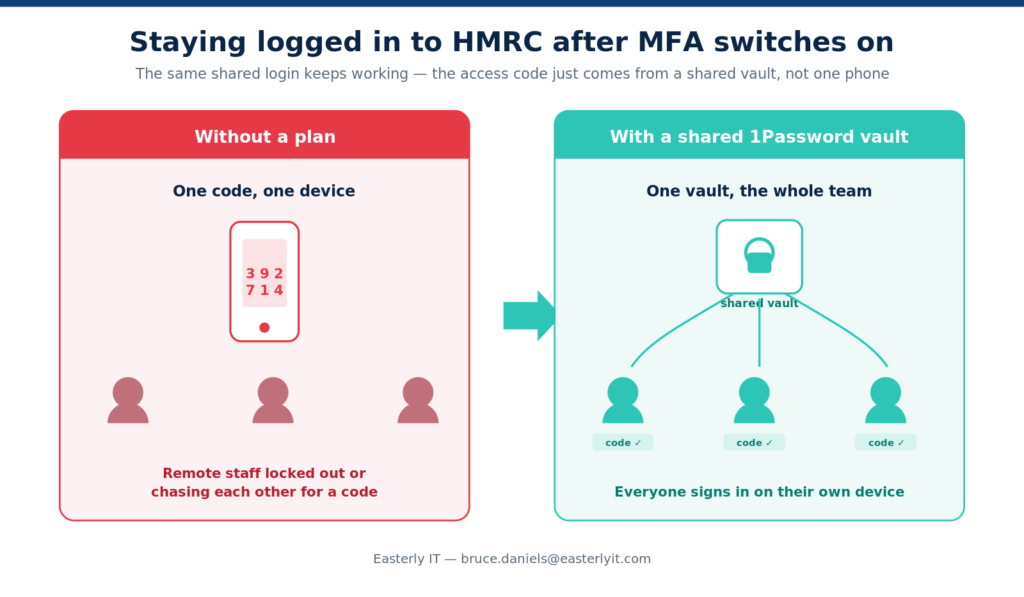
Multi-factor authentication is coming to every HMRC agent account in 2026. For small accountancy firms that share a login across a remote, dispersed team, a single SMS code won’t cut it. A shared TOTP vault in 1Password solves it — and you can be ready before the deadline.
By Bruce Daniels · Reading time: ~6 minutes · Updated June 2026
What’s changing
HMRC is turning on multi-factor authentication (MFA) for all online agent accounts. This covers both the Agent Services Account (ASA) and the older HMRC online services for agents account (OSA) — the “legacy” account many firms still use for Self Assessment and Corporation Tax.
Once it’s live, signing in directly to those accounts gains a second step: after your user ID and password, you’ll be asked for a one-time access code. Individuals and organisations have used this on their personal and business tax accounts for a while; now the same journey applies to agents. The code can be delivered three ways — an authenticator app (a time-based one-time password, or TOTP), an SMS text, or an automated voice call.
The challenge for small, remote firms
HMRC’s preferred approach is individual logins for every member of staff. That’s the cleanest security model, but it isn’t how a lot of small practices actually run. Many firms operate one or more shared accounts — a single user ID and password that the whole team uses — because it avoids the admin overhead of allocating every client to every individual login.
That model collides head-on with SMS- or voice-based MFA. If the access code lands on one phone, only the person holding that phone can sign in. And in a modern small firm, the team isn’t in one office passing a handset around — they’re working remotely, in different towns, sometimes in different time zones, often without a shared work mobile.
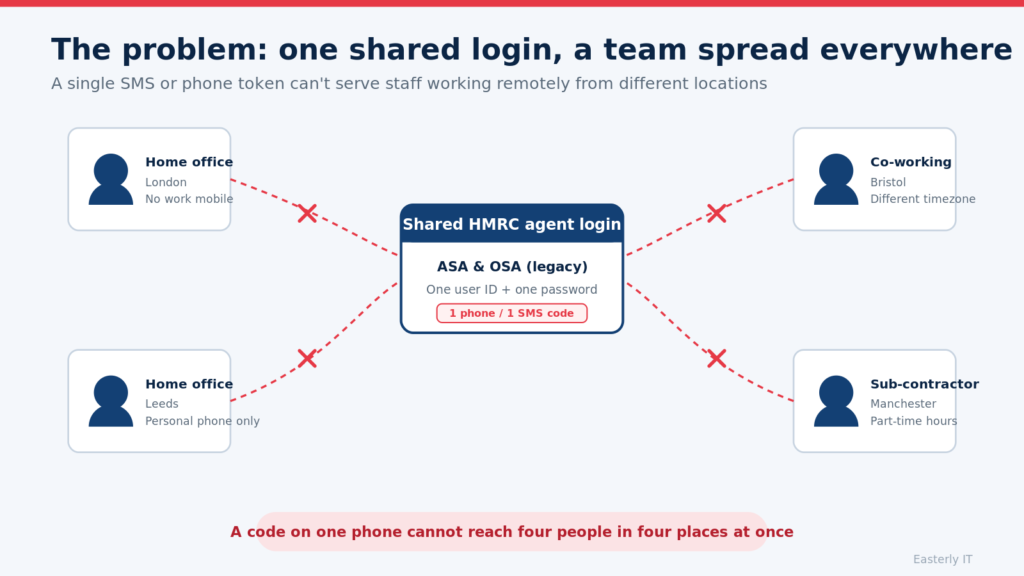
The trap: if your current access-code settings are out of date when HMRC switches MFA on, the first person to log in can be locked out on day one. Checking and updating those settings now is the single most important thing you can do.
The options HMRC gives you
There are really two decisions to make. First, how staff access the account — individual logins (HMRC’s preference) or keeping shared logins. Second, how the access code is delivered — authenticator app, SMS, or voice call. You can move from shared to individual logins later, so you don’t have to solve everything at once.
For a shared login used by a remote team, SMS and voice fall away quickly: both tie the code to one device or number. That leaves the authenticator-app route — the TOTP option — which is exactly what HMRC documents as the way to make shared credentials work. Crucially, HMRC explicitly allows a password manager or browser extension to generate that TOTP code, not just a phone app.
The solution: a shared TOTP vault in 1Password
Here’s the key technical insight. A TOTP authenticator code is generated from a single “secret key” (also called the seed). HMRC shows that secret as a QR code when you set up the authenticator-app option. Anyone who holds that same secret can generate the same valid 6-digit code, independently, without needing a phone signal or internet connection.
So instead of locking the secret inside one person’s phone, you store it once inside a 1Password item, place that item in a shared vault, and grant your team access to the vault. 1Password’s browser extension then fills in both the password and a live access code at sign-in. Every authorised team member can log in to the shared HMRC account on their own device, from anywhere.
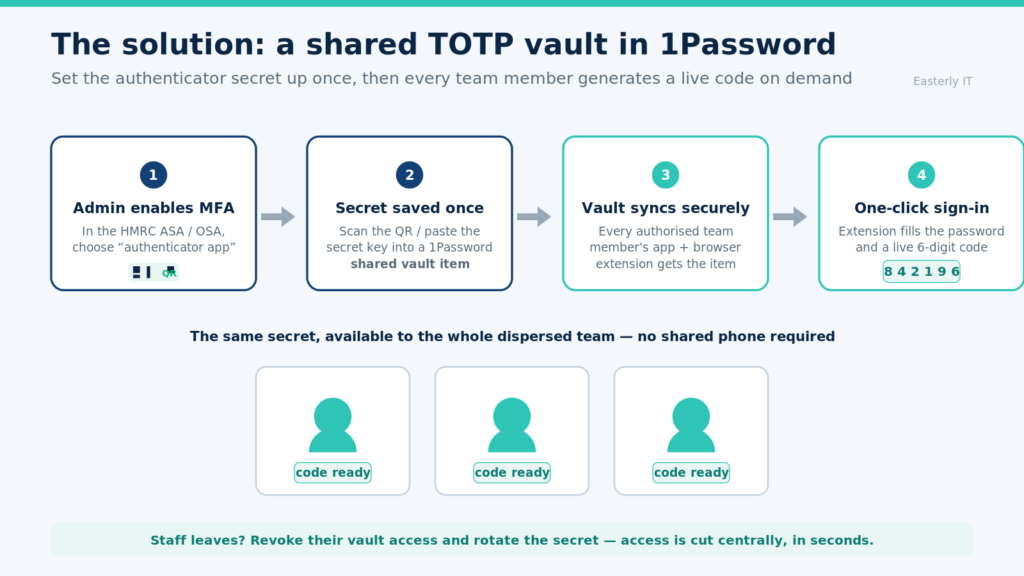
How it works, step by step
- The admin turns on MFA in HMRC. Using the account administrator credentials, go into the access-code settings of the ASA (and each OSA) and choose authenticator app as the method. HMRC displays a QR code containing the secret key.
- Save the secret once in 1Password. Create or open the login item for that HMRC account, choose to add a one-time password field, and scan the QR code (or paste the secret key if you can’t scan). 1Password now holds the seed.
- Put the item in a shared vault. Move the login into a vault you’ve shared with the relevant team or group, and set permissions (view, edit, or manage) to match each person’s role.
- Name it clearly. Label each HMRC credential distinctly — for example “HMRC ASA”, “OSA – VAT”, “OSA – Self Assessment” — so codes never get confused between credentials.
- The team signs in. Each member opens HMRC, and the 1Password browser extension fills the password and the live 6-digit code. No shared phone, no waiting on a colleague.
- Keep a backup. HMRC recommends setting up at least one backup access-code option, and you should store the original secret key securely so the authenticator can be rebuilt if a device is lost.
Security & governance — doing shared access properly
Shared credentials carry a real risk: someone who leaves the firm could still get in if nothing changes. A shared vault is what makes this manageable rather than dangerous.
When someone leaves: remove their access to the vault, then rotate the secret — reset MFA in HMRC, generate a fresh QR code, and update the single 1Password item. Access is cut centrally, in seconds, for everyone at once. You should also change the shared password at the same time.
Combine that with a couple of sensible HMRC housekeeping steps: keep at least two administrators on each account (an admin can reset MFA for others but not for themselves), make sure everyone knows their role before switch-on, and agree a single consistent approach across the firm before MFA goes live.
The dates that matter in 2026
HMRC is rolling MFA out in tranches and won’t tell individual firms the exact day it lands. You have two choices: opt in early for a date you control, or be switched on automatically in the final window.
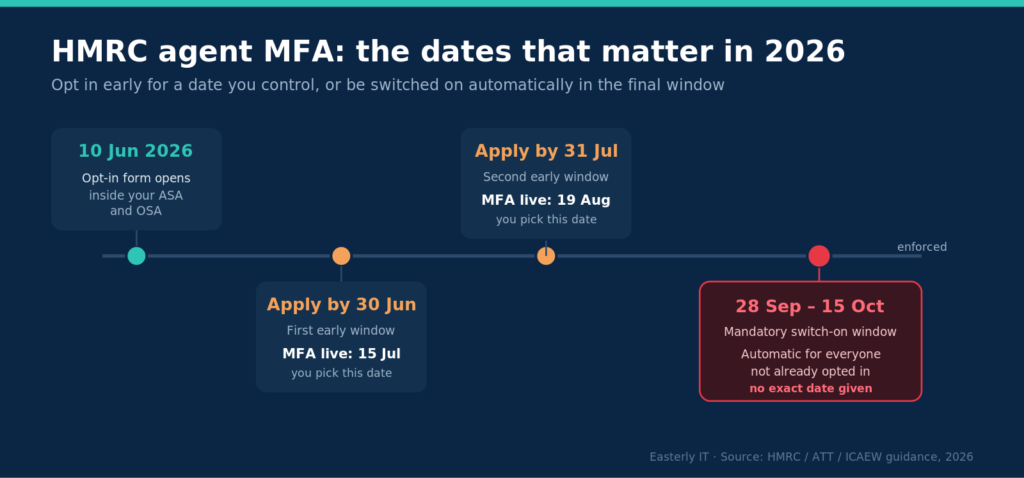
| Date | What happens |
|---|---|
| 10 June 2026 | The early opt-in form becomes available inside your ASA and OSA. Form opens |
| By 30 June 2026 | Apply for the first early window → MFA goes live 15 July 2026. You pick the date |
| By 31 July 2026 | Apply for the second early window → MFA goes live 19 August 2026. You pick the date |
| 28 Sep – 15 Oct 2026 | Mandatory switch-on window. Anyone not already opted in is activated automatically — no exact date given. Enforced |
If you have multiple agent IDs, you can choose which to activate in each window; any you don’t opt in early are swept into the final 28 September–15 October window.
Our recommendation: set your shared TOTP vault up now, then opt in early. You get to rehearse the new sign-in on a date you control, rather than discovering a problem on an unknown morning in October at the worst possible moment.
What to do next
The work is straightforward, but it touches every login your team uses, so it’s worth doing carefully and once. In short: confirm your administrators, check and update your existing access-code settings on every ASA and OSA, decide which accounts stay shared, build the shared 1Password vault, and brief the team before you opt in.
Want this set up for you before the deadline?
Easterly IT helps small accountancy firms deploy a secure, shared 1Password TOTP vault and get MFA-ready — without disrupting how your team works. We’ll handle the setup, the governance, and the staff handover. Email Bruce at Easterly IT →
Sources: HMRC, ATT and ICAEW guidance on agent MFA (2026); 1Password support documentation on shared vaults and one-time passwords. This article is general information, not specific security or tax advice for your firm.