
The Issue
Mobile phones have become the backbone of modern small business operations — handling emails, customer communications, payments, and access to critical data — yet they remain one of the least secured devices in any organisation. For most small businesses, the smartphone in an employee’s pocket is simultaneously the most valuable and most vulnerable piece of technology they own.
Our Recommendations
The good news is that you do not need a big budget to dramatically reduce your mobile device risk. The actions below are listed in priority order — start at the top and work your way down. Even completing the first three will put you ahead of the majority of small businesses.
- Enable remote wipe and a strong screen lock on every device used for business — including personal phones that access company email or apps.
- Separate work and personal activities on devices. Where possible, use dedicated work profiles or apps, and consider a free Mobile Device Management (MDM) trial to enforce this automatically.
- Create and follow an offboarding checklist. When any employee leaves — planned or unplanned — immediately revoke their access to all business accounts, apps, and cloud storage.
- Turn on Multi-Factor Authentication (MFA) for every business account that supports it. This single step blocks the vast majority of unauthorised access attempts.
- Require a VPN whenever staff access business data over public Wi-Fi networks.
- Set all business devices to install software updates automatically, and carry out a quick review of your devices every three months.
- Back up device data automatically to a secure, business-owned cloud location — not just a personal account.

How Urgent Is This?
This is not a “nice to have” for sometime next quarter. Mobile-targeted attacks are increasing year on year, and small businesses are disproportionately affected — research from Verizon’s 2025 Mobile Security Index found that 85% of organisations reported an increase in mobile-based threats, with small and medium businesses bearing the brunt of ransomware-related breaches.

Every day a device goes unprotected is a day an attacker, or a simple accident, could expose your customer data, your finances, or your business reputation. We would recommend treating the first three actions on the list above as immediate priorities — something to action this week, not this month.
The Full Picture
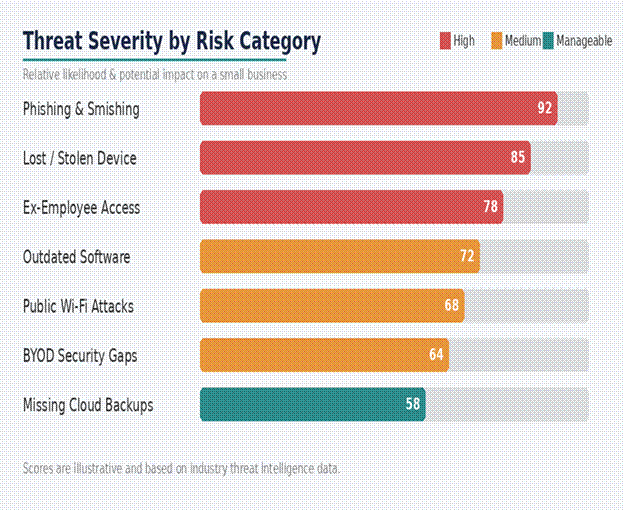
To understand why mobile devices pose such a significant risk, it helps to look at how small businesses actually use them — and where the gaps appear. Below we break down the main threats, explain why they matter, and show you the low-cost steps available to address each one.
| Lost, Stolen or Damaged Devices |
Smartphones are portable by design, which makes them inherently at risk. They travel with us on public transport, into coffee shops, and to client meetings. Industry data consistently shows that mobile devices are among the most frequently lost or stolen items in any workplace. If a phone containing business emails, customer records, or saved passwords is lost, the clock starts ticking the moment it leaves your possession.
What to do: Enable a screen lock (PIN, fingerprint, or face recognition) and turn on the built-in remote wipe feature on every device — Apple’s Find My and Android’s Google Find My Device both offer this for free. If you manage more than a handful of devices, a free MDM trial (such as Microsoft Intune, which is included with many Microsoft 365 business plans) lets you enforce these settings and wipe devices remotely from a central dashboard.
| The BYOD Problem |
Bring Your Own Device (BYOD) is extremely common in small businesses — it saves money on hardware and keeps staff connected. However, when a personal phone becomes a business tool, you lose a significant amount of control over what else is on that device, what networks it connects to, and what apps sit alongside your company data. A single poorly reviewed app on a personal device can become a gateway into your business systems.
What to do: Set clear written expectations for staff using personal devices for work. Where possible, use a separate work profile (Android offers this natively; Apple’s Managed Open In feature serves a similar purpose on iOS). These profiles keep work and personal data in separate containers, so if you need to wipe business data after an incident, personal files stay untouched.
| Ex-Employees Still Have Access |
One of the most common — and most damaging — oversights in small businesses is failing to remove a departing employee’s access to company systems. Email accounts, shared drives, CRM logins, and cloud storage links can remain active for weeks or even months after someone leaves. Whether the departure was amicable or not, this is a significant and entirely preventable risk.
What to do: Create a simple offboarding checklist and make it a non-negotiable part of every departure — planned or unplanned. This should include: disabling their email account, revoking access to shared drives and cloud storage, changing any shared passwords, and removing them from any group chats or collaboration tools. If you use Microsoft 365 or Google Workspace, both platforms allow you to disable accounts and revoke active sessions from a single admin panel at no extra cost.
| Public Wi-Fi: A Silent Threat |
Staff working on the go will almost certainly connect to public Wi-Fi — in a café, a hotel, or at a client’s premises. These networks are often unsecured, and attackers can position themselves on the same network to intercept data as it travels between a device and the internet. This type of attack, known as a man-in-the-middle attack, can silently capture login credentials, emails, and other sensitive information without the user ever realising.
What to do: Require staff to use a VPN (Virtual Private Network) whenever they connect to any network outside the office. A number of reputable business VPN services are available at very low monthly costs, and some (such as Microsoft’s built-in VPN with certain 365 plans) come included with software you may already be paying for.
| Phishing on Small Screens |
Phishing — where an attacker tricks someone into clicking a malicious link or handing over credentials — is far more effective on a mobile device than on a desktop. Smaller screens make it harder to spot suspicious URLs, and the speed at which we typically interact with phones means we are less likely to pause and think before tapping a link. AI-powered tools have made it significantly easier for attackers to craft convincing phishing messages at scale, and SMS-based attacks (sometimes called “smishing”) are particularly difficult to distinguish from legitimate messages.
What to do: Turn on Multi-Factor Authentication (MFA) for all business accounts — this is the single most effective step you can take to protect against phishing. Even if an attacker obtains a password, MFA means they still cannot access the account without a second form of verification. Alongside this, invest a small amount of time in regular, short staff awareness sessions — even a five-minute briefing on what to look out for makes a measurable difference.
| Outdated Software |
Software updates are not just about new features — they are a critical line of defence. Every update patches known vulnerabilities that attackers actively exploit. A phone running outdated software is, in effect, a phone with a known weakness that anyone could take advantage of. On personal devices, updates are often delayed or ignored entirely, which makes the BYOD risk even greater.
What to do: Set all business-used devices to install updates automatically. On iPhones, this is a single toggle in Settings. On Android, it depends on the manufacturer, but most now support automatic updates. Build a simple quarterly review into your routine — take ten minutes to check that all devices in use are up to date.
| Unsecured or Missing Backups |
If a phone is lost, stolen, or damaged beyond repair, the data on it is gone — unless it has been backed up. Many employees back up to a personal cloud account (such as a personal iCloud or Google account), but this puts business data outside your control entirely. You have no visibility of what is stored there, and no ability to recover or secure it if something goes wrong.
What to do: Set up automatic backups to a business-owned cloud account. Microsoft 365 and Google Workspace both include device backup capabilities, and if you are already paying for either platform, this is simply a matter of switching on the right setting. This ensures that even if a device is lost, your data remains accessible and under your control.
Quick-Reference Summary
The table below brings together every risk and its corresponding action in one place for easy reference.
| Risk | Low-Cost Action |
| Lost / stolen device | Enable remote wipe & screen lock on every device. |
| BYOD security gaps | Separate work & personal apps; use a free MDM trial. |
| Ex-employee access | Revoke all accounts & app access on the day someone leaves. |
| Public Wi-Fi interception | Enforce a VPN for any staff connecting remotely. |
| Phishing via SMS & email | Turn on MFA everywhere; train staff to pause before tapping links. |
| Outdated software | Set phones to auto-update; audit devices quarterly. |
| Unsecured cloud backups | Back up device data to a business cloud account automatically. |
Need Help Getting Started?
Securing your mobile devices does not have to be complicated or expensive. The steps outlined above are designed to be achievable for any small business, even without a dedicated IT team. However, if you would like guidance on putting these measures in place — or if you would like us to review your current mobile security posture — we would be happy to help.
At Easterly IT Services, we work with small businesses across North Norfolk and East Anglia to build practical, security-first IT solutions that protect your business without slowing it down. Get in touch today for a free initial conversation.