
A missing email is easy to dismiss as an Outlook problem, a spam-filter mistake or simply something that was never sent.
But what if the email arrived successfully, was silently marked as read and then moved into a folder the recipient rarely checks?
That was the unusual situation I recently investigated for a customer using Microsoft 365 and Classic Outlook. Messages from one particular sender domain were being moved automatically into the Conversation History folder and marked as read. There were no obvious rules in Outlook, the computers showed no evidence of malware, and the available sign-in information did not reveal suspicious access.
There was not enough evidence to conclude that the customer’s account had been compromised. However, the behaviour closely resembled a technique that can be used following an account takeover: creating an inbox rule that quietly diverts selected communications away from the user.
The lesson is important. A cyber incident does not always arrive noisily. Sometimes the warning sign is an email that appears not to have arrived at all.

What is a hidden mailbox rule?
Microsoft Exchange Online inbox rules process messages according to defined conditions. A rule can examine the sender, subject, recipient or other message properties and then take actions such as moving, deleting or forwarding the message. Microsoft’s Get-InboxRule command includes an -IncludeHidden option for displaying hidden rules that would not normally be returned. [learn.microsoft.com]
Rules can also be configured to mark messages as read or move them to another mailbox folder. These are legitimate features, but they can be misused to conceal important communications. [learn.microsoft.com]
An attacker might target messages from:
- A bank or payment provider
- An accountant or bookkeeper
- A customer or supplier
- Microsoft security services
- An IT support provider
- An insurance company
- A domain involved in an active invoice or payment conversation
The attacker does not necessarily need to delete the messages. Moving them into an obscure folder and marking them as read may be sufficient to make the recipient believe that nothing arrived.
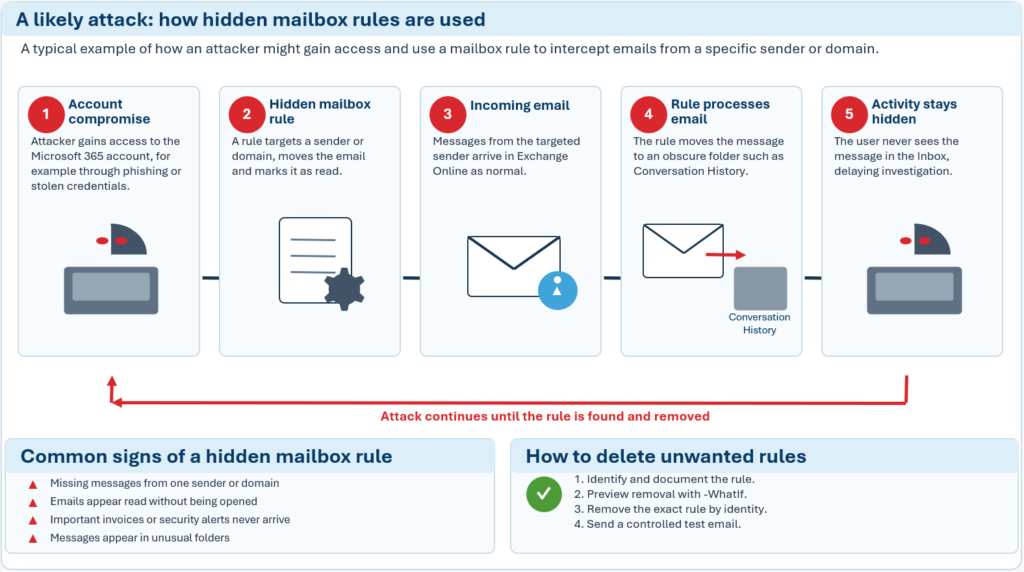
A likely attack flow
The accompanying diagram shows one plausible scenario:
- An attacker obtains access to a Microsoft 365 account, potentially through phishing, stolen credentials or a compromised session.
- The attacker creates an inbox rule targeting a particular sender, domain or subject.
- A legitimate email reaches Exchange Online normally.
- The rule marks it as read and moves it into an inconspicuous folder, such as Conversation History.
- The user does not see it in the Inbox, allowing the attacker’s activity to remain unnoticed.
This diagram illustrates a possible attack pattern, not a conclusion about the customer incident. A hidden or corrupted rule can also result from legitimate software, historical configuration or an unintended rule change.
Why would an attacker hide email?
To conceal security notifications
An attacker may want to prevent the mailbox owner from seeing password-reset notifications, suspicious sign-in warnings or messages from their IT provider.
To interfere with financial conversations
If a criminal is monitoring an invoice or payment conversation, messages from the real supplier could expose attempted payment diversion. A rule that hides the genuine responses may give the attacker more opportunity to impersonate one side of the conversation.
To delay detection
Moving an email is quieter than deleting it permanently. The original message still exists, but the user may not discover it unless someone searches the mailbox or examines an unusual folder.
To create confusion
When a supplier says, “We sent that last week”, the recipient will often assume there was a delivery problem. Time may be spent checking spam filters, message tracing and the sender’s mail platform before anyone examines mailbox rules.
Warning signs to look for
Businesses should investigate when:
- Messages from one sender or domain repeatedly go missing
- Email is unexpectedly marked as read
- Messages appear in Conversation History, RSS Feeds, Deleted Items or an unfamiliar subfolder
- An invoice, order or payment confirmation does not reach the expected Inbox
- Outlook shows no visible rule that explains the behaviour
- Automatic forwarding is enabled without an understood business reason
- A user discovers an inbox rule they do not remember creating
- The problem follows the mailbox across more than one computer
That final point is particularly useful. If the same behaviour occurs in Outlook on multiple devices or in Outlook on the web, the cause is more likely to be associated with the mailbox than with one local Outlook installation.
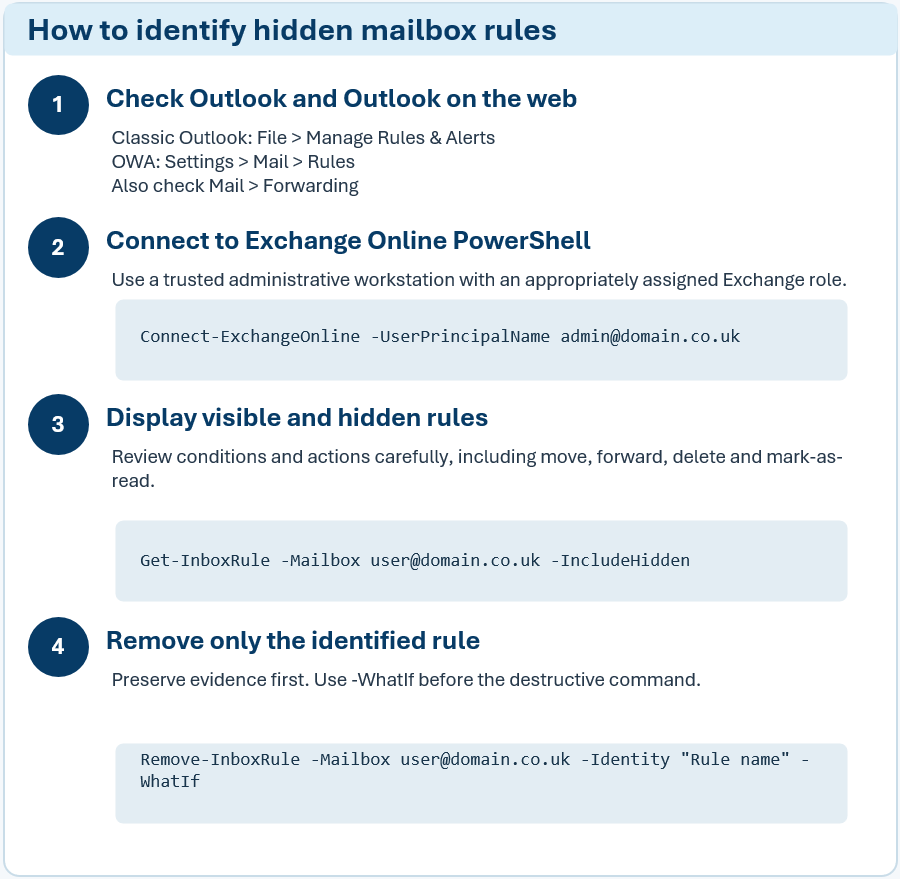
How to identify hidden inbox rules
1. Check Outlook and Outlook on the web
In Classic Outlook, open:
File → Manage Rules & Alerts
In Outlook on the web, open:
Settings → Mail → Rules
Review every rule, including disabled rules. Also check:
Settings → Mail → Forwarding
Do not stop here if no rule is visible. PowerShell provides a more complete administrative view.
2. Connect to Exchange Online PowerShell
Run this on a trusted administrative workstation rather than relying on Azure Cloud Shell:
PowerShell
Install-Module ExchangeOnlineManagement -Scope CurrentUser
Import-Module ExchangeOnlineManagement
Connect-ExchangeOnline -UserPrincipalName admin@yourdomain.co.ukShow more lines
The administrator must have suitable Exchange Online permissions. If Connect-ExchangeOnline returns Unauthorized, verify the Exchange Administrator or appropriate role assignment and review any Conditional Access restrictions affecting the connection.
3. Display visible and hidden rules
Replace the example address with the affected mailbox:
In PowerShell enter
Get-InboxRule -Mailbox user@customer.co.uk -IncludeHidden |
Format-List Name,Identity,Enabled,Priority,Description,
From,FromAddressContainsWords,SubjectContainsWords,
MoveToFolder,CopyToFolder,ForwardTo,RedirectTo,
DeleteMessage,MarkAsRead,StopProcessingRulesShow more lines
The -IncludeHidden switch is important because the basic command might not return every hidden rule. Microsoft documents Get-InboxRule as the cmdlet used to view rule properties, including actions that move or delete messages. [learn.microsoft.com]
Save the output as evidence before changing anything:
PowerShell
Get-InboxRule -Mailbox user@customer.co.uk -IncludeHidden |
Format-List * |
Out-File ".\user-customer-inbox-rules.txt"Show more lines
Look for:
- The affected sender or domain
MarkAsRead : True- A
MoveToFoldervalue pointing to Conversation History - External forwarding or redirection addresses
- A meaningless, misleading or blank rule name
- A rule with
StopProcessingRules : True - Conditions targeting words such as “invoice”, “payment”, “password” or “security”
Important: not every hidden rule is malicious
Exchange mailboxes can contain legitimate hidden system rules. For example, Microsoft documentation notes that the Junk E-mail Rule can exist as an expected hidden rule. Do not delete a rule purely because it is hidden. Examine its conditions, actions and purpose first. [learn.microsoft.com]
4. Check forwarding separately
Inbox rules are not the only way to redirect messages:
PowerShell
Get-Mailbox user@customer.co.uk |
Format-List ForwardingAddress,ForwardingSmtpAddress,
DeliverToMailboxAndForwardShow more lines
Also review mailbox delegates:
PowerShell
Get-MailboxPermission user@customer.co.uk |
Where-Object {
$_.IsInherited -eq $false -and
$_.User -notlike "NT AUTHORITY\SELF"
} |
Format-Table User,AccessRights,DenyShow more lines
A delegate is not automatically suspicious. Shared administration and support arrangements may be legitimate, but every permission should have a known business justification.
How to delete an unwanted rule safely
First identify the exact rule and preserve its configuration.
Preview the removal using -WhatIf:
PowerShell
Remove-InboxRule `
-Mailbox user@customer.co.uk `
-Identity "Suspicious rule name" `
-WhatIfShow more lines
If the displayed action is correct, remove it:
PowerShell
Remove-InboxRule `
-Mailbox user@customer.co.uk `
-Identity "Suspicious rule name" `
-ConfirmShow more lines
Microsoft documents Remove-InboxRule as the cmdlet for removing a specific inbox rule. The identity can be the rule name or another unique rule identifier. [learn.microsoft.com], [Remove-InboxRule]
You can disable a rule rather than immediately deleting it:
PowerShell
Disable-InboxRule `
-Mailbox user@customer.co.uk `
-Identity "Suspicious rule name" `
-ConfirmShow more lines
Disabling is useful when you want to stop processing immediately while retaining the rule temporarily for investigation. [Disable-InboxRule]
A critical Outlook warning
Microsoft warns that creating, modifying, disabling or removing inbox rules through Exchange PowerShell can affect client-side Outlook rules. Export or otherwise document legitimate Outlook rules before making changes, particularly where the customer has complex local rules. [learn.microsoft.com], [Remove-InboxRule]
Avoid commands that pipe all inbox rules into Remove-InboxRule unless the intention is genuinely to delete every rule. Remove the identified rule by its exact identity.
How to investigate who created the rule
Current rules tell you what exists now. The Microsoft Purview audit log may help establish when a rule was created or modified and which recorded identity performed the action.
In Microsoft Purview:
- Open Solutions → Audit.
- Set the appropriate date and time range.
- Search for inbox rule activities, including:
- New-InboxRule
- Set-InboxRule
- Update inbox rules from Outlook client
- Open relevant results and inspect the rule parameters.
Microsoft’s guidance says audit records can show the rule name, its conditions, its destination folder and the recorded user associated with creating the rule. [Identify i…audit logs], [Search the…ort issues]
From PowerShell, an administrator with the required audit permissions can use:
PowerShell
Search-UnifiedAuditLog `
-StartDate "2026-08-01" `
-EndDate "2026-09-30" `
-UserIds user@customer.co.uk `
-Operations New-InboxRule,Set-InboxRule,Remove-InboxRule `
-ResultSize 1000Show more lines
Adjust the dates to the actual investigation window. Microsoft recommends expanding the date range if an initial audit search produces no result. No result does not prove that a rule never existed, particularly if the relevant event is outside the available audit data or the search criteria are too narrow. [learn.microsoft.com], [Identify w…lbox rules]
Microsoft notes that the Audit Logs role in Purview is required for this investigation. [learn.microsoft.com], [Identify w…lbox rules]
What to do after removing a suspicious rule
Removing the rule fixes the symptom, but not necessarily the underlying security problem.
A sensible response should include:
- Reset the affected account password using a unique password.
- Revoke active sessions and refresh tokens.
- Confirm MFA registration methods, removing anything the user does not recognise.
- Review Entra ID sign-in logs, including successful sign-ins, device details and Conditional Access results.
- Check forwarding addresses, delegates and mailbox permissions.
- Review sent mail and deleted items for unusual activity.
- Run message traces for selected affected emails.
- Examine Purview audit records for rule, forwarding and mailbox activity.
- Move diverted messages back to the Inbox, after preserving any required evidence.
- Send controlled test messages from the affected sender domain and confirm that they remain in the Inbox.
The Conversation History folder itself is not necessarily malicious. Moving messages back to the Inbox is reasonable, but deleting the folder does not address the process that moved them. Establish and remove the cause first.
How SMEs can reduce the risk
Use strong, phishing-resistant authentication
Multi-factor authentication should be the minimum. Where practical, businesses should move towards phishing-resistant methods such as passkeys, Windows Hello for Business or FIDO2 security keys.
Restrict administrative access
Day-to-day user accounts should not also be tenant administrators. Administrative accounts should be separate, protected and used only when required.
Review mailbox rules and forwarding
Include inbox rules, external forwarding and mailbox delegation in periodic Microsoft 365 security reviews. This is particularly important for accounts handling payments, payroll, senior management correspondence or customer financial information.
Use Conditional Access where licensing allows
Microsoft Entra Conditional Access can restrict sign-ins based on risk, device state, application and other conditions. Avoid relying solely on country blocking, since attackers can use infrastructure located in the same country as the victim.
Train staff to report missing mail
Security awareness training often focuses on suspicious messages. Users should also know that a missing message can be a security signal, especially when a supplier insists that it was sent or when only one sender is affected.
Treat unexpected mailbox behaviour as an incident
Do not assume that an empty sign-in investigation or clean malware scan rules out all suspicious activity. Preserve evidence, document the timeline, review the mailbox configuration and verify the result with controlled tests.

Final thoughts
In this case, there was no conclusive evidence that an attacker created the rule. That distinction matters. A technical fault or legacy configuration should not be presented as a confirmed breach without supporting evidence.
However, the behaviour demonstrated why mailbox rules deserve attention. Email can be delivered successfully, processed automatically and hidden from the person who needed to see it.
Cyber resilience is not only about preventing someone from getting through the front door. It is also about noticing when normal business communication quietly stops behaving normally.
If your business is missing messages, finding email in unusual folders or seeing correspondence marked as read unexpectedly, investigate the mailbox itself rather than assuming the sender or Outlook is at fault.
Easterly IT Services helps small businesses review Microsoft 365 security, investigate unusual mailbox activity and put practical protections in place. If something in your mailbox does not look right, it is worth checking before a missing email becomes a much bigger problem.
If you are concerned that some of your emails are missing or want a broader security review the please review our services at – https://easterlyit.com/services.html
And then reach out to us at – https://easterlyit.com/contact.html